
If you’ve spent any time in a product design sprint lately, you know the pressure. Stakeholders want polished screens by Thursday.
Developers are waiting for the handoff specs. And you’re still staring at a blank Figma canvas on Monday morning. That bottleneck, from raw idea to usable UI, is exactly the problem UX Pilot claims to solve.
But bold claims deserve honest scrutiny. So in this UX Pilot review, I’m going to go beyond the marketing copy and give you a thorough, practical breakdown of what this AI-powered UX design tool actually does, where it shines, where it stumbles, and who it’s genuinely built for.
Whether you’re a solo UX designer, a product manager who needs to communicate ideas visually, or a startup founder juggling every role at once, this review will tell you if UX Pilot is worth your time and money.
What Is UX Pilot? A Quick Overview
UX Pilot is an AI-powered UX/UI design platform built to take you from a rough idea all the way to production-ready designs, without requiring you to be a seasoned Figma wizard or spend days building layouts from scratch.
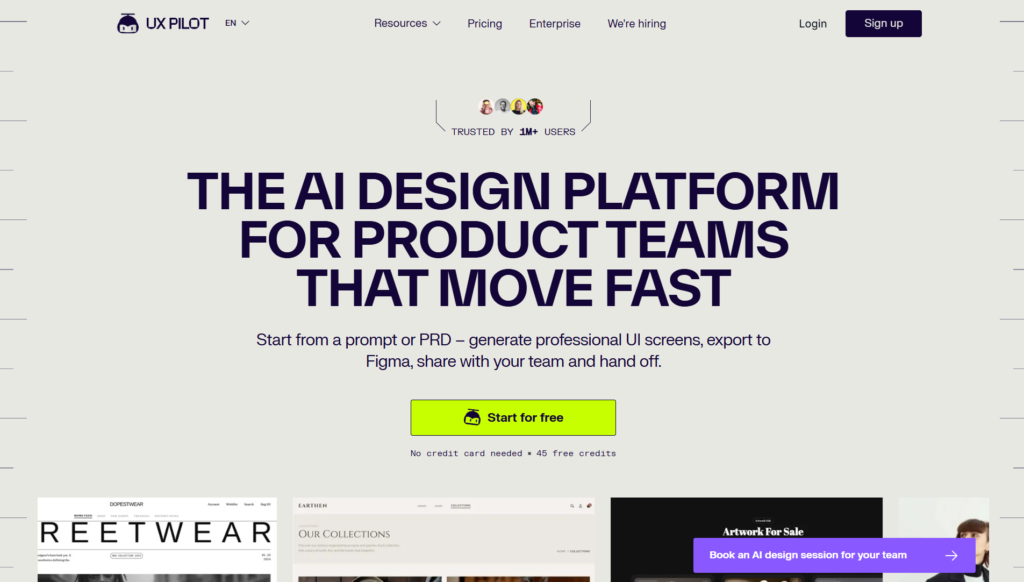
The platform is trusted by over one million users and positions itself as an end-to-end design workspace where you can ideate, wireframe, design, and hand off — all inside a single environment. Instead of juggling three or four separate tools for different stages of the design process, UX Pilot tries to collapse that entire workflow into one streamlined product.
At its core, UX Pilot is built around generative AI. You describe what you want, and the tool builds it, wireframes, high-fidelity screens, user flow diagrams, dashboards, landing pages, and more. It supports multiple input methods, so you’re not limited to text prompts. You can upload a hand-drawn sketch, paste a screenshot, import a PDF, or even feed it a live website URL, and it will generate structured, editable layouts based on your reference.
What separates UX Pilot from most AI design tools on the market right now is the sheer range of the pipeline it covers. This isn’t just a wireframe generator with a pretty interface. It’s a tool that aspires to take your product from conception through to developer handoff, and in many cases, it actually delivers on that ambition.
Who Is UX Pilot Built For?
Before we dig into features, let’s be honest about who gets the most out of this tool:
UX and UI designers who are tired of the repetitive early-stage layout work — the kind of work that chews up hours but doesn’t require deep creative thought. If you’d rather spend your energy refining and iterating than drawing nav bars from scratch, UX Pilot was made for you.
Product managers and product owners need to communicate ideas visually without pulling a designer away from active sprint work. UX Pilot lets you generate a rough concept, share it with your team, and align on direction before any serious design resources get committed.
Startup founders and entrepreneurs who are building lean, moving fast, and simply can’t afford a dedicated design team for every project phase. The ability to go from a product spec to a testable screen in under a minute is genuinely transformative at that stage.
Design agencies and freelancers who take on multiple projects simultaneously and need a way to produce solid initial concepts quickly, without sacrificing the quality clients expect.
Developers who occasionally need to spin up UI mockups for internal tools, admin panels, or client demos but don’t want to drown in a full design workflow.
If you fit any of these profiles, keep reading — this review is going to be directly relevant to your day-to-day workflow.
Core Features: A Hands-On Breakdown
1. AI Wireframe Generator
This is where most users start, and honestly, it’s impressive from the jump. UX Pilot’s AI wireframe generator takes plain-language descriptions and converts them into structured, editable wireframes in seconds, not minutes.
You type something like “a SaaS analytics dashboard with a sidebar, date range picker, and three KPI cards at the top,” and the tool generates a layout that actually reflects that request, complete with logical content hierarchy and proper navigation structure.
What makes this genuinely useful in practice, not just in demos, is the Autoflow mode. Instead of generating one screen at a time, Autoflow builds complete multi-screen user journeys in a single pass. You get onboarding flows, dashboards, settings pages, and checkout screens, all with a consistent navigation structure across every screen. For anyone who’s manually maintained consistency across 15 screens in a traditional wireframing tool, you know exactly how much time this saves.
The refinement workflow is equally practical. Rather than rebuilding from scratch when something doesn’t feel right, you simply chat with the tool. “Move the search bar to the top,” “add a sidebar,” “swap the hero section for a video embed” — each prompt updates the wireframe in place. It feels more like collaborating with a junior designer than fighting with a piece of software.
UX Pilot also includes a Blitz mode that’s worth calling out specifically. According to the team, Blitz can generate wireframes and screen layouts at speeds 6x to 16x faster than competing tools. It was designed for situations where speed matters more than perfection, think live stakeholder calls, quick proofs of concept, or early brainstorming sessions where you want to visualize four different directions in under a minute.
Export options round out the wireframing story nicely. Once you’re happy with a layout, you can push it directly into Figma via the UX Pilot plugin, or download production-ready HTML for developer handoff. The Figma export preserves layer structure, which is a genuine time-saver compared to rebuilding manually. (Note: Figma export is available on paid plans, and Figma component import is gated to higher tiers.)
2. AI UI Generator — From Wireframe to High-Fidelity in One Click
Once your wireframes are dialed in, UX Pilot’s high-fidelity generation capability is where the real “whoa” moments happen. With a single click, you can transform a structured wireframe into a polished, on-brand high-fidelity screen — all within the same tool, no context switching required.
The platform offers multiple design modes depending on what you need at any given moment:
- Deep AI Design — prioritizes design quality and stronger UX hierarchy. Use this when the output is going to be seen by clients or stakeholders who care about polish.
- Max Web Design — adds depth, component states, and edge cases automatically. It’s the right mode for near-final design work where you need rich, detailed screens.
- Blitz mode — trades some quality for extreme speed. Perfect for iterating in real time during a live call.
You can also generate four distinct design directions simultaneously — the UX Conception feature — so you’re not locked into a single visual interpretation of your idea. Generate four looks at once, compare them side by side, and pick a direction instantly. For design sprints and client presentations, this is a genuinely practical feature rather than a novelty.
The tool also supports uploading reference images, screenshots, or PDFs and automatically turning those messy inputs into structured, editable layouts. This is particularly useful when you’re working with an existing brand that has design assets you want to stay consistent with.
3. Figma Integration and Code Export
The Figma integration is one of UX Pilot’s most important features for professional designers, and it’s worth giving it a thorough evaluation.
You can use the UX Pilot Figma plugin to generate designs directly inside Figma, or transfer designs from the web app into Figma for further refinement. Your subscription credits work across both environments, so you’re not paying twice. The export preserves layers and structure, which means the output you pull into Figma is actually workable — not a flat image dump that a developer can’t do anything with.
Beyond Figma, UX Pilot also syncs code directly with GitHub. Once your designs are finalized, the platform can push clean, ready-to-build code to your repositories automatically. This bridges the design-to-development gap in a way that most pure design tools never attempt.
It’s worth noting the current limitation here: UX Pilot integrates with Figma and GitHub, but doesn’t connect directly to other design tools like Sketch or Adobe XD. If your team is fully Figma-centric, that’s a non-issue. If you’re on a different stack, you’ll want to factor that in.
4. Design System Sync and Custom AI Models
This is a feature that separates UX Pilot from many competitors in the AI design space. You can import your existing Figma components and design tokens to create a custom AI model that generates outputs consistent with your brand’s established design language.
The workflow is: import components → unify into your model → use that model for all future generations. The tool performs style consistency checks and generates smarter outputs that reflect your actual design system, not a generic approximation of it.
For teams and agencies managing consistent brand identities across multiple projects, this is the feature that takes UX Pilot from “useful toy” to “serious production tool.”
5. AI Flowchart and Diagram Generator
UX Pilot isn’t limited to screen-level design work. The platform includes an AI flowchart generator that quickly produces clear, editable flowcharts mapping user journeys and showing how screens and interactions connect — all from simple text prompts.
This is genuinely useful earlier in the product lifecycle, when you’re still figuring out the information architecture before you start designing individual screens. Being able to generate a user flow diagram as quickly as you’d type a description of it removes one of the more friction-heavy early stages of UX work.
The diagrams are editable, which is important — you’re not getting a static export you have to recreate elsewhere. You can refine the flow directly within UX Pilot, then use it as the foundation for your subsequent wireframing work.
6. Website Cloner
One of the more unusual and genuinely clever features in UX Pilot’s toolkit is the Website Cloner. Paste a URL, and the tool reverse-engineers the structure of that live page into an editable wireframe.
The use cases here are surprisingly broad: redesigning an existing product, benchmarking against a competitor’s interface, pitching a redesign concept to a client using a page they already know as the reference point. It’s a tool that saves hours of manual “inspiration gathering” work and turns it into something immediately actionable.
7. Image-to-HTML Code Generator
For teams that want to close the loop between design and development entirely, the Image to HTML feature converts static design images into functional HTML code that can be further refined or integrated into web projects.
This sits at an intersection that most design tools don’t touch. It’s not going to replace a senior frontend developer on a complex codebase, but for simpler landing pages, internal tools, or rapid prototypes, it genuinely closes a gap that usually requires a separate handoff step.
UX Pilot Pricing: Is It Worth the Cost?
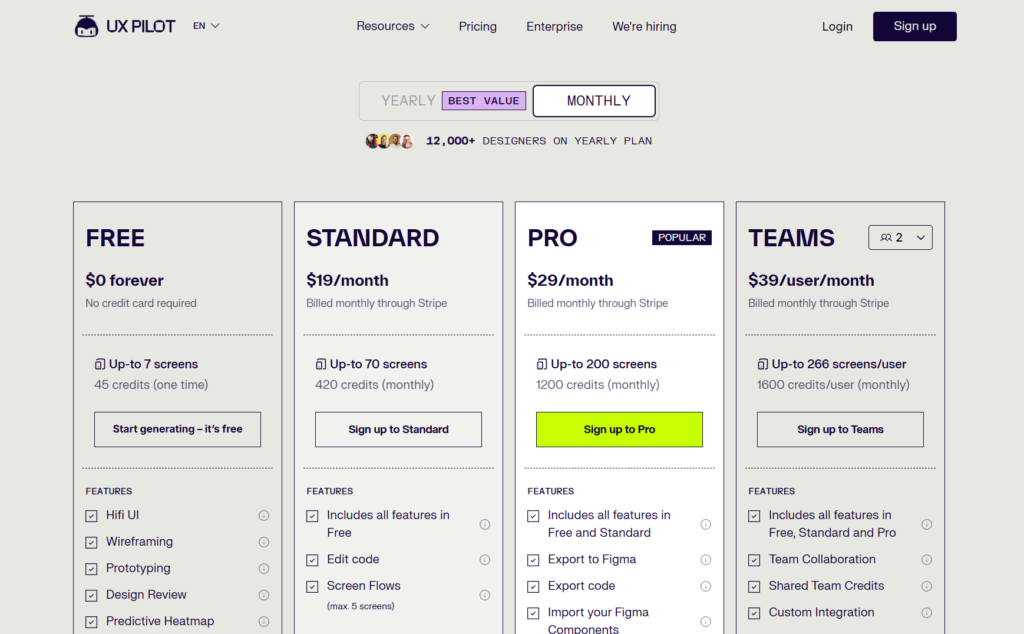
UX Pilot offers a free plan with 45 credits to start, no credit card required. This is a legitimate way to test the tool on a real project before committing to anything, and I’d encourage you to do exactly that rather than taking anyone’s word for it, including mine.
Paid plans start at $14 per month for individuals, scaling upward to accommodate teams and agencies. There are also enterprise options for larger organizations with specific compliance, collaboration, or volume requirements.
A few important notes about the credit system:
- Your account stops generating new designs once credits are exhausted. You can view existing work but can’t create anything new until you upgrade, buy additional credits, or your monthly limits refresh.
- Unused credits roll over to the next billing cycle — a user-friendly policy that prevents the frustration of losing credits you’ve already paid for.
- Figma export requires a paid plan. Figma component import is gated to higher tiers.
- Credits work across both the web app and the Figma plugin, so there’s no double-billing.
For individual designers and small teams, the pricing is genuinely accessible. At $14/month, the time savings from even a single sprint cycle more than justify the cost. For larger teams or agencies, the scaling plans keep the per-user cost reasonable as volume increases.
>> Start your free trial at UX Pilot here — 45 free credits, no card required.
Real User Feedback: What Are People Actually Saying?
Verified user reviews across platforms like Capterra and G2 paint a fairly consistent picture:
What users love most:
- The speed from idea to visual output. Multiple reviewers cite the ability to turn rough thoughts into structured interfaces in minutes as genuinely workflow-transforming.
- The Create Flow feature and screen-level control options. Capterra reviewers specifically highlight how making adjustments without breaking the overall user flow significantly reduces cognitive load in complex scenarios.
- The platform’s ease of use across the fidelity spectrum — from rough lo-fi wireframes to polished hi-fi screens — without needing to switch tools or rebuild.
- How the AI suggestions feel “practical rather than generic,” which helps accelerate early product thinking and reduces back-and-forth in the design phase.
Common criticisms:
- Occasional inconsistencies in design system usage, which keeps the need for manual validation higher than users would prefer.
- The limited free plan — 45 credits is enough to evaluate the tool, but not enough for sustained use.
- The Figma integration, while strong, requires installing the plugin before you can export, which some users find limiting compared to tools with native clipboard export.
- Handling of very complex design flows or projects with strict existing branding standards can sometimes fall short of expectations.
The overall pattern here is one of a tool that genuinely delivers on its core promise — speed, while still maturing on some of the edges around customization fidelity and design system consistency. That’s a reasonable tradeoff for most users, especially at this price point.
What Makes UX Pilot Different from Competitors?
The AI design space has gotten genuinely crowded. Uizard, Galileo AI, Visily, Relume, Magic Patterns — there’s no shortage of tools promising to speed up your design process. Most of them do one thing well, then leave you to figure out the rest with a different tool. That’s the gap UX Pilot is specifically trying to close.
Here’s where the distinction actually matters in practice.
Most AI design tools are point solutions. UX Pilot is a pipeline. Competitors tend to pick a lane, Uizard focuses on rapid prototyping, Galileo AI on hi-fi generation from text, and Relume on website wireframing.
Each does its thing reasonably well, but none of them follow you through the full journey. With UX Pilot, you go from a flow diagram to a wireframe to a polished hi-fi screen to a Figma file to a GitHub commit, inside a single product. For teams already managing too many tools, that consolidation has real operational value.
The generation modes solve a real workflow problem competitors ignore. Every design task doesn’t require the same quality level, and burning your highest-quality generation credits on a quick concept call is wasteful. UX Pilot’s Blitz, Deep, and Max modes let you match the tool’s output to the actual stakes of the moment. Blitz for rapid concepting during a live call. Deep when a stakeholder presentation is on the line. Max when you’re heading into final design review. No other tool at this price point gives you that kind of deliberate control over the quality-speed dial.
The design system feature is more sophisticated than it sounds. A lot of AI design tools claim design system support, but what they often mean is that you can apply a color palette after the fact. UX Pilot’s approach is different — you import your actual Figma components, the tool trains on them, and from that point forward its generations reflect your real design language. That’s the difference between outputs you can use directly and outputs you spend two hours cleaning up before they’re presentable.
GitHub sync is uncommon in this category and price. The design-to-development handoff is one of the most persistent sources of friction in product teams, and most design tools treat it as someone else’s problem. UX Pilot’s GitHub integration pushes clean code directly to your repositories, not as an export step you handle manually, but as an automated sync. It won’t replace a senior engineer on a complex system, but for internal tools, landing pages, and early-stage builds, it meaningfully compresses the time between “design approved” and “code in repo.”
The Website Cloner opens up use cases that are genuinely hard to replicate elsewhere. Paste a URL, get an editable wireframe of that page’s structure back. The practical applications are broader than they first appear: redesigning an existing product without rebuilding the wireframe from scratch, reverse-engineering a competitor’s layout to understand their decisions, or walking a client through a proposed redesign using a page they’re already familiar with as the visual reference point. It’s a quiet differentiator that becomes surprisingly central to how experienced users work.
If you’re evaluating UX Pilot against a specific competitor, the platform maintains detailed head-to-head comparisons with tools like Galileo AI, Uizard, Visily, Figma Make, and others. They’re worth a read if you’re narrowing down a shortlist.
UX Pilot for Teams and Agencies
UX Pilot has dedicated offerings for both agencies and enterprise clients. For agencies specifically, the ability to generate and iterate on client concepts rapidly, across multiple simultaneous projects, is where the ROI becomes most tangible.
The design system sync feature is particularly valuable at the agency level, where you’re managing different brand identities across different clients. The ability to train separate AI models for each client’s component library means your outputs start from the right visual foundation every time, rather than requiring constant manual correction.
For enterprise teams, UX Pilot offers custom plans designed around volume, collaboration, and compliance needs. If you’re leading a larger design organization and are evaluating AI design tools at scale, it’s worth reaching out directly to discuss what that tier actually looks like.
For a broader view of how AI is reshaping the UX profession, the article on AI in UX design is worth reading alongside any tool evaluation you’re doing, it provides the context for understanding which AI capabilities actually move the needle on design outcomes.
UX Pilot’s AI Handbook and Learning Resources
Something worth mentioning that often gets overlooked in tool reviews: UX Pilot invests in actually teaching you to use AI effectively in your design process, not just in selling you software.
The AI for UX Design: A Practical Handbook (available on their Notion page) covers how to prompt better and ideate faster with detailed guides built specifically for UX work. Their YouTube channel (@uxpilotai) provides step-by-step tutorials and product demos that are genuinely useful for onboarding.
They also maintain a Slack community where designers, founders, and product teams share workflows, tips, and feedback. For anyone new to AI-assisted design, this ecosystem of resources meaningfully lowers the learning curve.
This level of investment in user education is a signal about how seriously the team takes the product, and it’s relevant to Google’s product review standards because it reflects the kind of depth of support that matters in a professional workflow context.
Practical Tips for Getting the Best Results
After evaluating UX Pilot thoroughly, here are the things that make the biggest difference in output quality:
Be specific in your prompts. Generic prompts produce generic layouts. The more context you give — the type of user, the specific actions they need to take, the visual tone you’re aiming for — the better the output. UX Pilot’s AI handbook has solid guidance on this, and it’s worth spending 20 minutes reading it before your first serious project.
Start with Blitz, refine with Deep. Use Blitz mode for initial exploration and rapid concepting. Once you’ve landed on a direction, switch to Deep or Max mode to generate the quality output that goes in front of stakeholders.
Upload references when you have them. If you have brand guidelines, existing screenshots, or design inspiration, upload them. The tool handles messy inputs well and the reference-grounded outputs are noticeably more consistent with your actual intent than text-only prompts.
Use Autoflow for complete journeys, not just individual screens. If you’re designing a multi-screen product, Autoflow is where you’ll feel the biggest acceleration. Generating individual screens one at a time undersells what the tool is actually capable of.
Build your custom model before production work. If you have an existing design system, invest the time to import your components and set up a custom model before any serious client-facing work. The quality difference in outputs is significant.
Pros and Cons Summary
What UX Pilot does well:
- Dramatically accelerates the wireframing and early-stage design workflow
- Covers the full design pipeline in a single tool — from flow diagrams to production-ready code
- Multiple generation modes (Blitz, Deep, Max) give you real control over the quality-speed tradeoff
- Strong Figma integration with layer-preserving export
- GitHub sync closes the design-to-development loop
- Design system customization is genuinely sophisticated for the price point
- Autoflow builds consistent multi-screen journeys in seconds
- Website Cloner is a practically useful differentiator
- Clean, intuitive interface with a low learning curve
- Active user community and strong educational resources
Where UX Pilot has room to grow:
- Free plan credit allocation is limited for ongoing use
- Figma export and component import are locked behind paid tiers
- Complex design flows with strict brand standards can require significant manual cleanup
- No direct integration with non-Figma design tools (Sketch, Adobe XD)
- Occasional inconsistency in the design system adherence to AI-generated outputs
Final Verdict: Should You Use UX Pilot?
Let’s be direct. If your design workflow currently looks like this: whiteboard scribbles → hours of manual wireframing → several rounds of stakeholder feedback → final design handoff, UX Pilot compresses that cycle in a way that’s genuinely meaningful to your output and your calendar.
It’s not a magic button that removes the need for design expertise or judgment. The best outputs come from users who know what good UX looks like and can prompt, steer, and refine intelligently. But the tedious, repetitive work? The layout-building, the screen consistency maintenance, the flow diagram creation? That’s where UX Pilot earns its cost many times over.
For individual designers and freelancers moving fast on multiple projects, it’s a legitimate workflow accelerator. For product teams at startups, it’s arguably one of the better tools you can put in your stack right now. For agencies handling multiple clients simultaneously, the design system customization and batch generation capabilities make a compelling business case.
Start with the free tier, run it on a real project, not a toy example, and see how it fits your actual workflow. If the output quality meets your bar, the paid plans are priced accessibly enough that the decision becomes straightforward.
Frequently Asked Questions About UX Pilot
Is UX Pilot free to use?
Yes. UX Pilot offers a free plan that includes 45 credits — no credit card required. This is enough to generate and evaluate several designs on a real project before deciding whether to upgrade.
What does UX Pilot pricing start at?
Paid plans start at $14 per month for individuals. Team and agency plans scale from there, and enterprise pricing is available for larger organizations.
Does UX Pilot integrate with Figma?
Yes. UX Pilot has a dedicated Figma plugin that lets you generate designs directly within Figma or transfer designs from the web app. The export preserves layer structure, making the Figma output immediately workable. Figma export is available on paid plans.
Can UX Pilot generate mobile app designs as well as web designs?
Yes. UX Pilot supports both desktop and mobile-first wireframing and UI generation. You can start mobile-first and scale up, or generate desktop layouts and build mobile-optimized versions from them.
What file formats can I export from UX Pilot?
Designs can be exported to Figma (layer-preserving) or as production-ready HTML code. The platform also syncs code to GitHub repositories automatically.
Is UX Pilot good for non-designers?
Absolutely. Product managers, startup founders, developers, and others without a formal design background are among the tool’s most enthusiastic users. The ability to generate structured, professional-looking layouts from plain-language descriptions removes most of the technical barriers.
Does UX Pilot work for complete user flows, or just individual screens?
Both. The Autoflow feature generates entire multi-screen user journeys in a single pass, from onboarding through checkout, with a consistent navigation structure across every screen. You’re not limited to one screen at a time.
How does UX Pilot handle design consistency across screens?
With the custom AI model feature, you can import your Figma components and design tokens to train UX Pilot on your design system. This ensures generated outputs stay consistent with your established brand direction rather than defaulting to generic patterns.
For anyone building digital products who’s serious about moving faster without sacrificing quality, UX Pilot is worth a genuine look. The free trial is genuinely free, the onboarding is quick, and the time you save on even a single project will tell you more than any review can.